Add an I am affirmation widget to your iPhone or Android Home Screen, pick a size, theme and category, and set how often it changes.
November 5, 2026
·
3 min
To add an affirmation widget, press and hold an empty spot on your Home Screen, tap the add or Widgets option, find I am, and place the small, medium or large size you want. The widget then shows a fresh affirmation on its own, so you see one every time you unlock your phone.
This guide covers iPhone and Android, how to choose a size and a look, and how to control what the widget says and how often. You need the free I am app, opened once, before the widget has anything to show.
Which widget size should you choose?
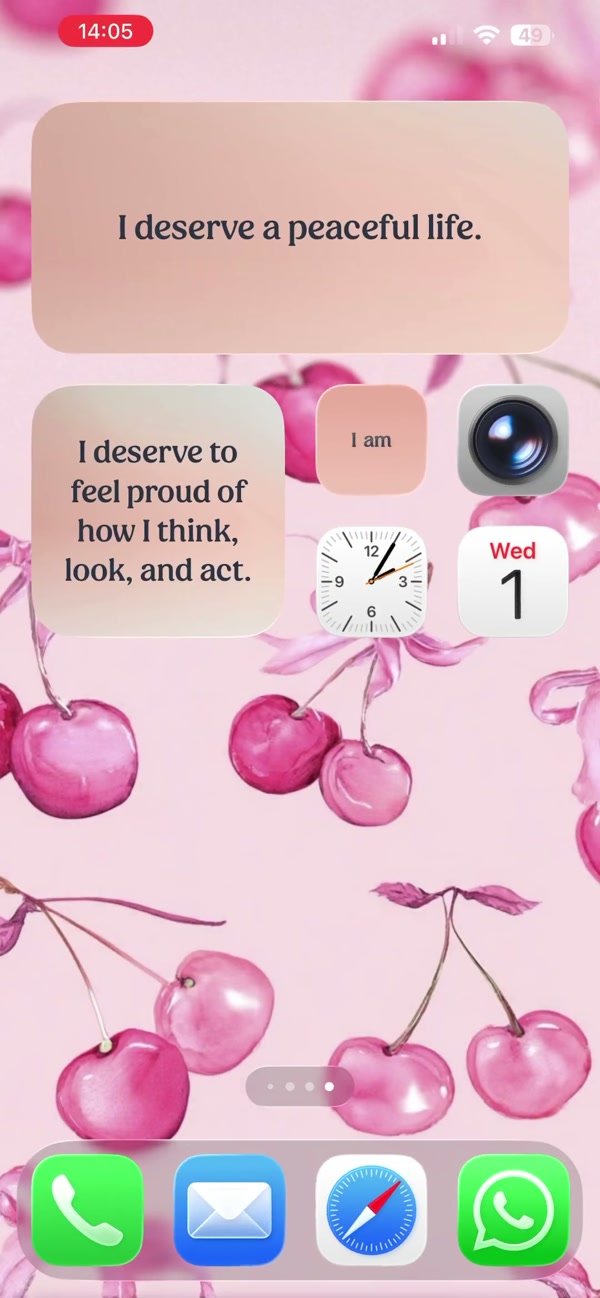
The I am widget comes in small, medium and large. Small fits beside your apps and suits a short line. Medium holds a full affirmation, and large gives longer text room to breathe. Only medium and large widgets can show like and share buttons, so choose one of those if you want to save an affirmation or send it without opening the app.
You can place several widgets, each with its own name, category and look. A calm one for mornings and a confidence one on a second page is a common setup.
What can you customize on the widget?
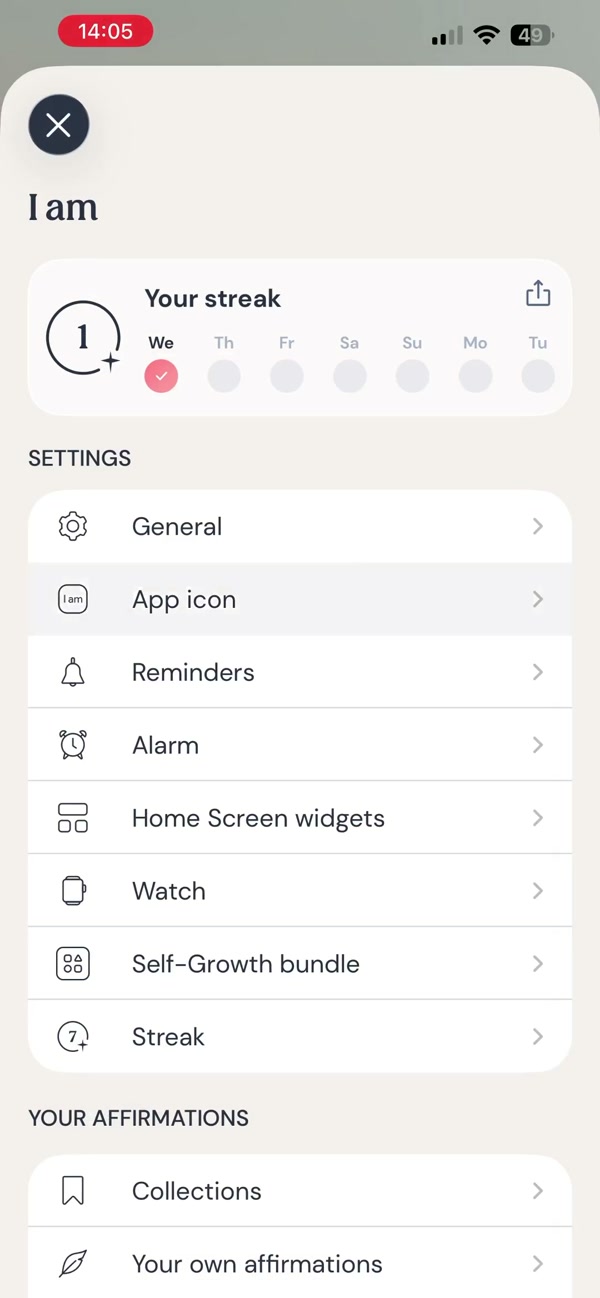
In the app, Profile → Widget settings lets you change the theme, widget name, text size, refresh frequency, category and border, and turn the buttons on or off. Basic customization is free. Advanced options, such as choosing a theme and border per widget and setting the refresh frequency, are part of Premium.
If you want the widget on your Lock Screen instead of, or as well as, the Home Screen, see the iPhone Lock Screen guide.
How to add an affirmation widget to your Home Screen, step by step
1. Install I am and open it once
The widget needs the app to have been opened at least once after installation. Open it, let it load, then go back to your Home Screen.
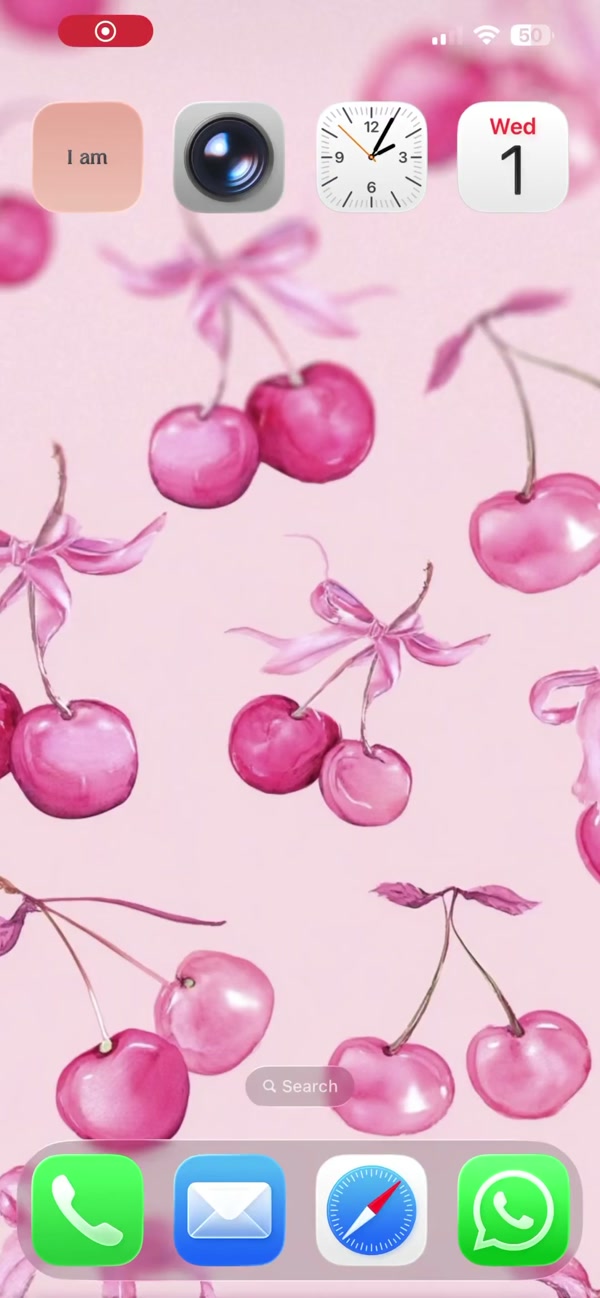
2. Press and hold an empty part of the Home Screen
On iPhone, hold until the icons wiggle, then tap the + button at the top. On Android, hold an empty spot and tap Widgets; on some launchers you pinch the Home Screen first.
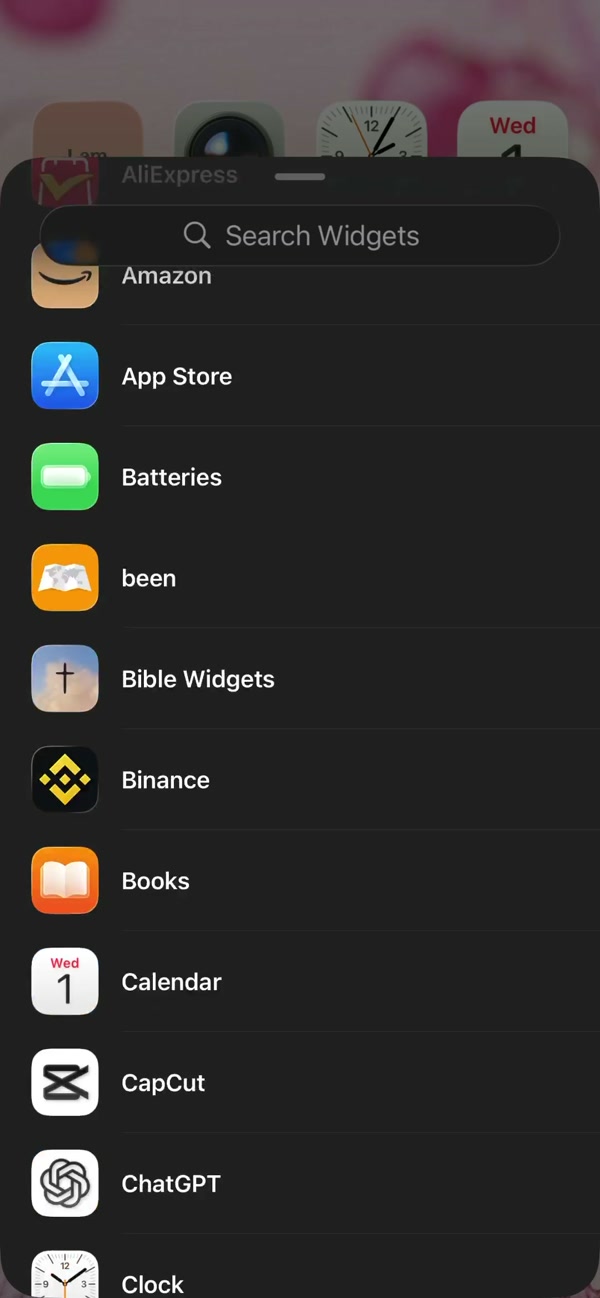
3. Find I am in the widget list
Scroll the list or search for I am. Tap it to see the available sizes.
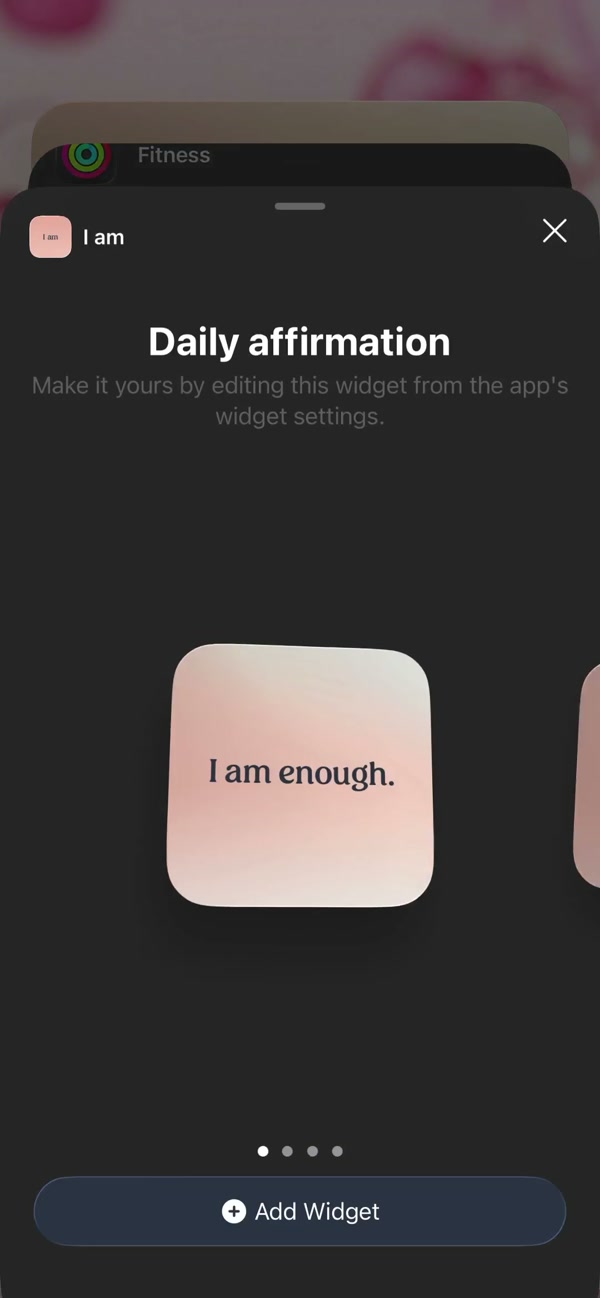
4. Pick a size and add it to a page
Choose small, medium or large and tap Add Widget on iPhone, or drag it onto a page on Android. Move it where you want it, then tap Done on iPhone. On Android you can usually resize it afterwards by holding it and dragging the edges.
5. Choose a category and a theme
Open I am, tap your profile and then Widget settings. Select the widget, choose a category that fits the day you want, and pick a theme that reads well over your wallpaper.
6. Turn buttons on and set the refresh rate
On a medium or large widget, switch on Show buttons to like and share from the widget. Then pick a refresh frequency: slower for one affirmation to sink in, faster for variety.
7. Name the widget if you use more than one
Give each widget a name in Widget settings, such as Morning or Confidence, so you can tell them apart when you edit them later.
Frequently asked questions
Why does my I am widget show a placeholder or nothing?
Open the app once so it can load its affirmations, then return to the Home Screen. If it stays blank, remove the widget and add it again.
Can I get buttons on the small widget?
No. Like and share buttons are available on the medium and large sizes only.
Can I choose which affirmations the widget shows?
Yes. Pick a category for each widget in Widget settings. Using all categories is a Premium option, so a free account has a smaller set to choose from.
Why does the widget stop changing on Android?
Android power saving can pause background updates. Exclude I am from battery optimization in your phone settings, and open the app once if the widget still looks stale.