Add an I am affirmations widget to your iPhone Lock Screen in a few taps, choose its categories and refresh rate, and see what Android can do instead.
November 5, 2026
·
3 min
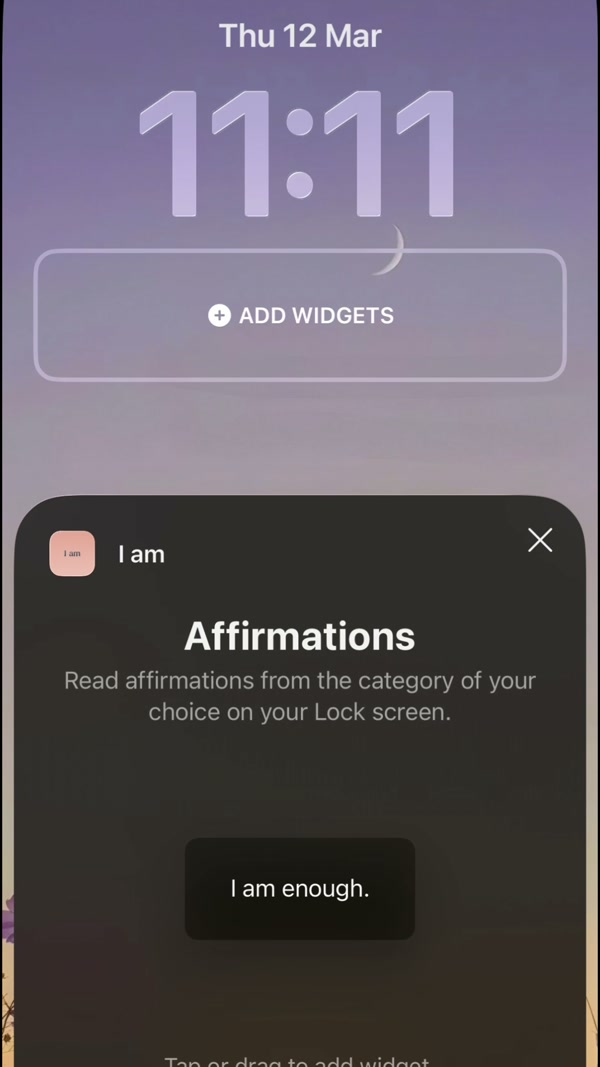
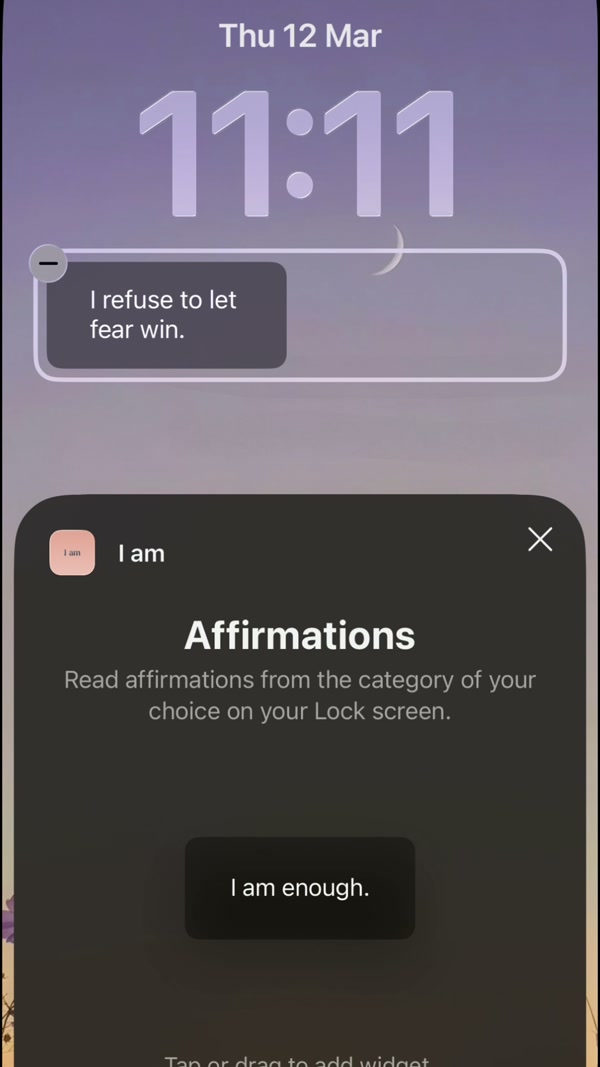
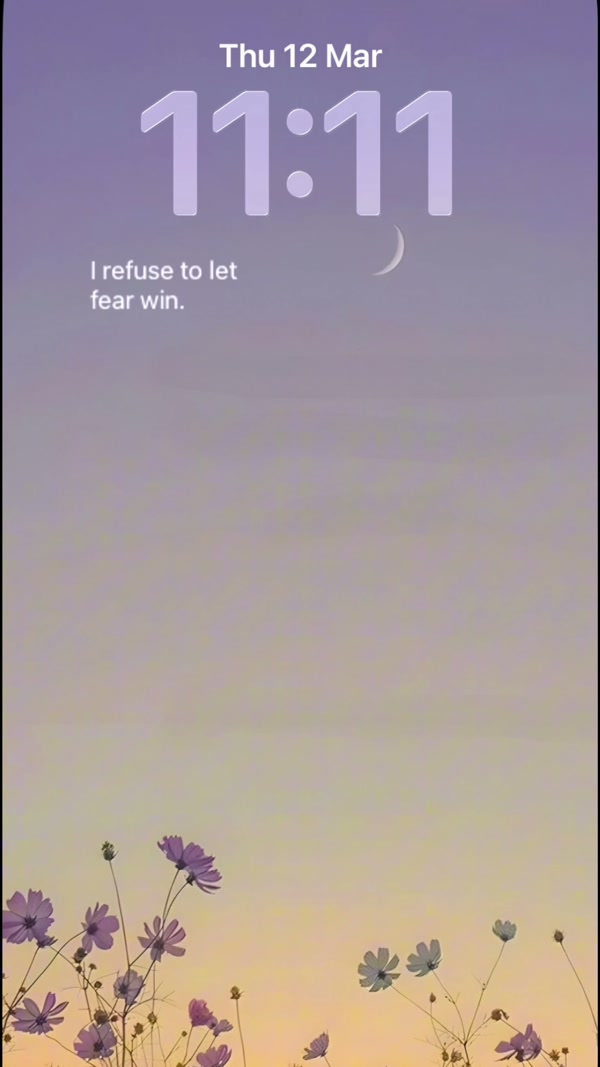
To put affirmations on your iPhone Lock Screen, press and hold the Lock Screen, tap Customize, tap the area under the time, and add the I am widget. It then shows an affirmation every time you look at your phone, with no unlocking and no app to open.
This guide covers the iPhone steps from start to finish, how to choose what the widget shows, and what to do on Android, where there is no Lock Screen widget. You need the free I am app, opened once.
What do you need for a Lock Screen affirmation widget?
Lock Screen widgets are an iPhone feature that needs iOS 16 or later. The I am widget comes in two compact formats: a rectangular one with more room for text, and a circular or line one for a short phrase. The app supports one Lock Screen widget setup at a time, so you choose one set of categories and one refresh rate for it.
Open the app once after installing it, or the widget has nothing to show. If you want a larger affirmation with buttons and a theme behind it, the Home Screen is the better place; the Home Screen widget guide covers that.
Can you put affirmations on an Android Lock Screen?
Not as a widget. Android has no built-in Lock Screen widget system, so the I am app cannot place one there. Inside the app you may see a Lock Screen widget card on Android; it is a prompt to add the Home Screen widget, and it disappears once you have added one.
To see an affirmation before you unlock an Android phone, use a reminder: it arrives as a notification and waits on the Lock Screen. The daily reminders guide walks through the setup.
How to add an affirmation widget to your iPhone Lock Screen, step by step
1. Install I am and open it once
Download the app, open it and let it load. Allow notifications if you also want reminders, then go back to the Lock Screen.
2. Press and hold the Lock Screen
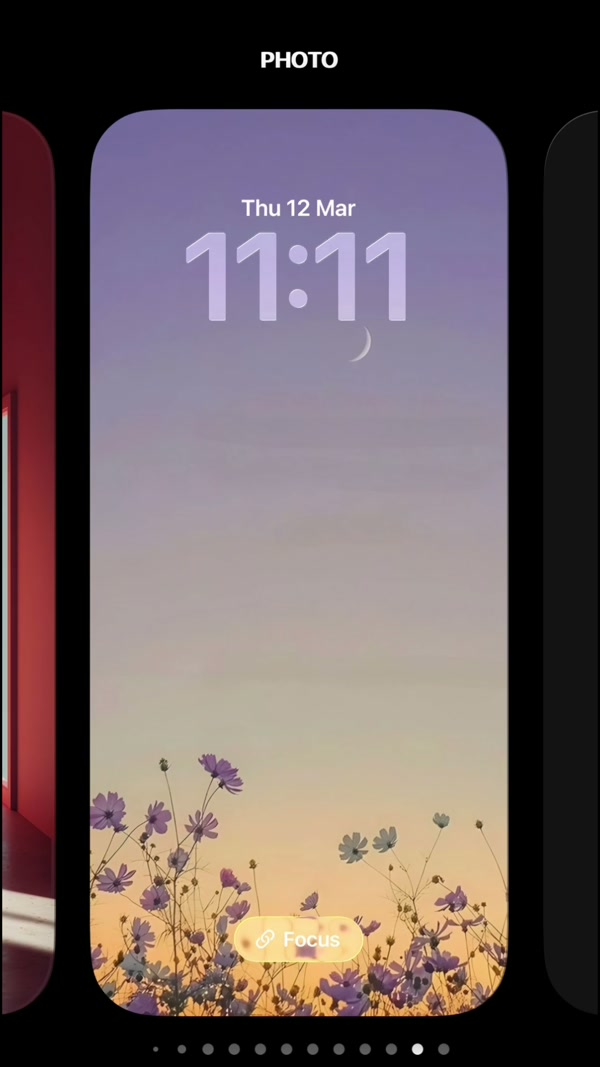
Wake your iPhone and unlock it with Face ID or Touch ID, but stay on the Lock Screen without swiping up. Press and hold an empty spot until the wallpaper gallery appears, then tap Customize and choose the Lock Screen.
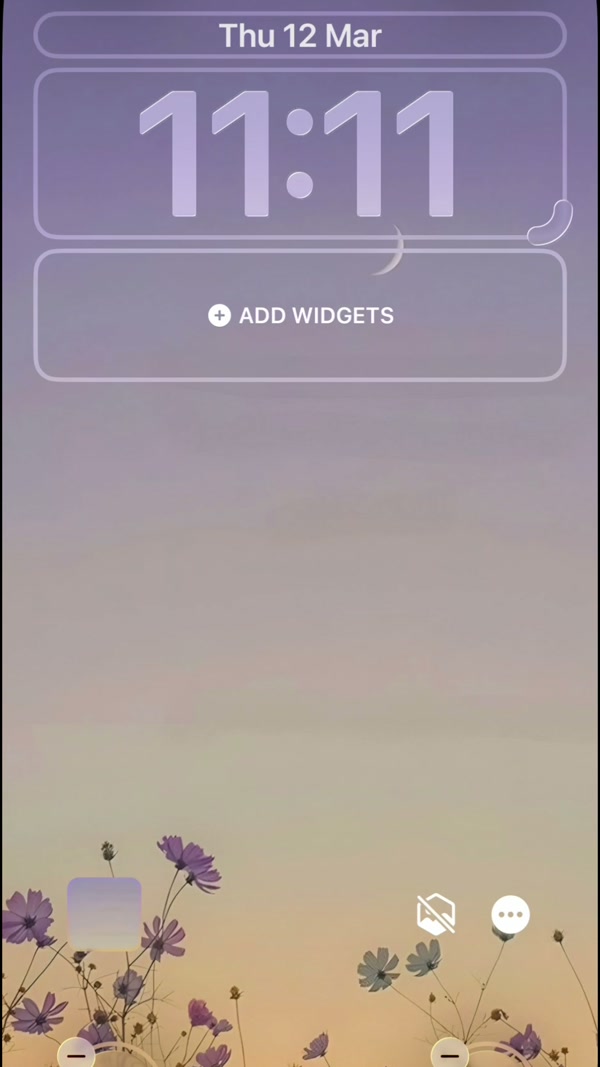
3. Tap the widget area under the time
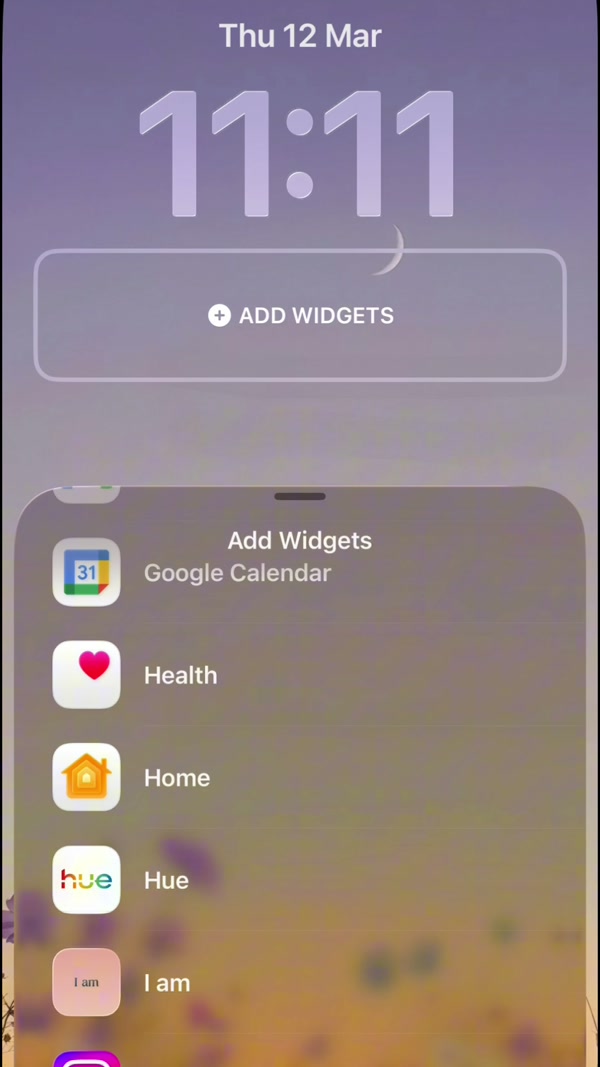
Tap the box below the clock. The widget gallery opens and lists the apps that offer Lock Screen widgets. Find I am in the list or type its name in the search field.
4. Choose the rectangular or the circular widget
Tap the rectangular widget for a full affirmation, or the circular or line one for a short phrase. Tap it again, or drag it, to place it in the row, then tap Done to save the Lock Screen.
5. Choose what the widget shows in the app
Open I am, tap your profile and open Widget settings, then pick the Lock Screen widget. Select the categories you want, such as confidence or calm, and the font.
6. Set how often the affirmation changes
Pick a refresh rate: Never, Twice a day, Occasionally (once or twice an hour), Frequently (8 to 12 times a day) or Very frequently (every few minutes). Twice a day suits a morning and evening habit; slower rates give one affirmation more time.
7. Lock the phone and check it
Press the side button and wake the phone. The affirmation should appear under the time. If it still shows a placeholder, open the app once more and give the widget a minute to refresh.
Frequently asked questions
Which iPhones can show affirmations on the Lock Screen?
Any iPhone running iOS 16 or later, because that is the version that introduced Lock Screen widgets. Older iOS versions cannot place a widget on the Lock Screen.
Why is the I am widget missing from my Lock Screen widget list?
Open the I am app once and go back to the widget list. If it is still missing, restart the iPhone; the list sometimes refreshes only after a restart.
Can I use more than one affirmation widget on the Lock Screen?
You can add more than one widget to the row, but the app keeps a single Lock Screen setup, so the categories and refresh rate are shared. For different topics side by side, use Home Screen widgets.
Is the Lock Screen widget free?
The widget with basic customization is part of the free app. Premium adds advanced widget customization such as themes, borders and refresh frequency, plus all categories.